Microsoft 365 backups: why cloud storage is not enough

Last week, we covered the Microsoft 365 switches that protect your accounts from unwanted access. This week is about the uncomfortable next question: if a file, folder or mailbox disappears anyway, can you get it back quickly? Cloud storage makes files easy to reach. It does not automatically make recovery simple.
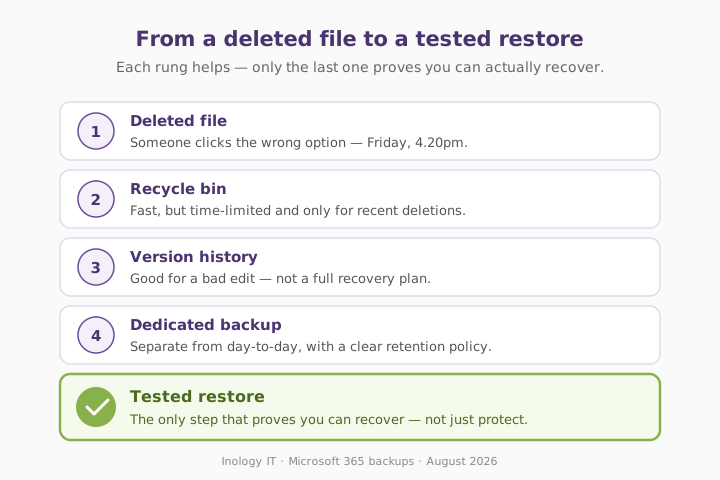
The folder that vanished at 4.20pm on a Friday
A Greater Manchester accountancy practice called us at 4.20pm on a Friday after a shared client folder vanished from SharePoint. It had years of working papers, spreadsheet templates, signed documents and scanned records inside it.
Nobody meant to cause trouble. One member of staff was cleaning up old folders, clicked the wrong option, and SharePoint synchronised the deletion across the team. Within minutes, people were rebuilding spreadsheets from old email attachments and creating new folders with almost the same names.
The practice assumed Microsoft 365 meant everything was "backed up." In reality, they had useful protection features — file version history and recycle bins — but no documented recovery process, no independent backup policy and no one who could say how far back a restore would go.
We recovered the folder, but the bigger lesson remained: a cloud service can help you store and collaborate on files. It does not remove the need to decide what counts as critical data, how long it must be retained, and how you will restore it after a mistake or attack.
Why this matters
- Microsoft's default recovery window for a deleted user's OneDrive is finite — the account is retained for 30 days, then kept in a deleted state for a further 93 days. Useful, but a lifetime archive it is not. Microsoft Learn: OneDrive retention and deletion.
- 38% of UK businesses experienced phishing attacks in the last year — a common way attackers obtain access that can lead to data theft, deletion or ransomware inside a Microsoft 365 tenant. Cyber Security Breaches Survey 2025/26, GOV.UK.
The fix
Recycle bins, version history and retention policies are valuable first lines of defence. But they are not a substitute for deciding what must be protected, separating backups from day-to-day activity, and practising the restore process. The NCSC advises organisations to make regular backups and confirm they can restore the important data they expect.
Three quick wins you can act on this week
🏠 At home
Check your photos, documents and phone backup. Don't just look for a cloud icon: restore one harmless test file or photo to prove you can retrieve it. Make sure important files aren't stored only on a single laptop. See our companion tip on the 3-2-1 rule for the simple pattern that works at home and at work.
🏢 At work
Ask your IT provider for a plain-English answer to three questions: (1) what Microsoft 365 data is backed up, (2) how long it is retained, and (3) how quickly Outlook, OneDrive or SharePoint can be restored. Make sure the answer covers leavers' OneDrives, shared mailboxes and Teams-linked SharePoint files — that's where most gaps hide.
🌍 For everyone
Test recovery before there's an incident. Pick one non-critical file, delete it, restore it, and record the steps. The NCSC recommends knowing how to restore backups and checking that they contain the important data you need. A backup you've never tested is a hope, not a plan.
What actually counts as protection?
Honest comparison — this is what we see across small-business tenants in Greater Manchester.
| Protection option | Helps with accidental deletion | Separate from day-to-day | Restore certainty | Best use |
|---|---|---|---|---|
| Recycle bin only | ✅ For a limited time | ❌ No | ⚠️ Depends on timing | Everyday mistakes |
| File version history | ✅ For changed files | ❌ No | ⚠️ Depends on settings | Undoing a bad edit |
| M365 retention policies | ✅ For selected content | ⚠️ Depends on configuration | ⚠️ Needs admin knowledge | Compliance-led retention |
| Dedicated M365 backup | ✅ Yes | ✅ Yes | ✅ Defined and tested | Any business with important data |
| No planned recovery process | ❌ No | ❌ No | ❌ No | Nobody |
What this looks like locally
We help accountancy practices, legal firms, manufacturers and professional-services teams across Denton (M34), Ashton-under-Lyne (OL6), Stockport (SK1) and Trafford (M33) understand what their Microsoft 365 setup can actually recover. The usual discovery isn't a dramatic cyberattack: it's a leaver's OneDrive, a deleted SharePoint folder, or an overwritten spreadsheet that nobody has tested restoring before.
If you'd like to see how backup fits alongside our wider Microsoft 365 support, our cloud backup and Microsoft 365 pages cover both.
Frequently asked
Is Microsoft 365 automatically backed up?
Microsoft 365 includes service resilience and features such as recycle bins, version history and retention. Whether that meets your business's recovery needs depends on what data you hold, your settings, your retention requirements and how quickly you need to restore it.
Can I recover deleted OneDrive files?
Often, yes — but there are time limits. Microsoft says deleted users' OneDrive data is retained for the configured period, which is 30 days by default, followed by a 93-day deleted state that can require administrator restoration.
Does SharePoint version history count as a backup?
It's a useful recovery feature, particularly for undoing an accidental edit. It's not necessarily a complete, separate backup strategy for deletion, ransomware, retention requirements or a large-scale recovery.
What Microsoft 365 data should we back up?
Start with business email, OneDrive, SharePoint sites, shared files, client records and important Teams-channel documents. Check exactly what's included in any backup product because different tools may cover different Microsoft 365 workloads.
How often should we test backups?
Test at regular intervals and whenever you make a major change to your systems. The useful test isn't "does the backup dashboard say green?" but "can we restore a file, folder or mailbox within the time the business needs?"
Can ransomware affect cloud files?
Yes. If ransomware or a compromised account can modify or encrypt synchronised files, those changes may spread. The NCSC advises ensuring backup systems preserve previous versions and allow recovery, then scanning backups for malware before restoring.
"The cloud makes files easy to reach. A tested backup makes them possible to recover when somebody deletes the wrong thing at quarter past four on a Friday." — Brett Casterton, Inology IT
Let's find out — same day.
I'm Brett at Inology IT. We help Greater Manchester businesses check what's protected across Outlook, OneDrive and SharePoint, identify the gaps, and test a recovery before it becomes an emergency. Drop your details below and I'll come back to you the same day.
Last reviewed by Brett Casterton, August 2026.