The leaver checklist: remove access before it becomes a problem

Last week, we covered the settings and habits that keep phones and laptops running longer. This week is a different kind of care — for the accounts a device connects to. When someone no longer needs access, take the key back. That applies whether it is an old tablet at home or a staff member leaving a business.
“I can still see the company files.”
A Greater Manchester manufacturer called us after a former employee sent an uncomfortable message: “I can still see the company files.”
The employee had left weeks earlier. Their laptop had been handed back, their desk had been cleared and payroll had done its part. But their Microsoft 365 account had not been properly offboarded. They still had Outlook and Teams on their personal phone, remained in several groups, and could open shared folders through old links.
Nobody had been careless. HR assumed IT had removed access. IT was waiting for confirmation of the final leaving date. The line manager thought it had happened automatically. It had not.
We blocked sign-in, revoked active sessions, checked devices, reassigned files, removed group memberships and reviewed the shared passwords the person had known. The immediate job took less than an hour. The more important outcome was a simple leaver checklist that now starts before anyone's final day.
Most access problems are not caused by a disgruntled former employee. They happen because nobody remembers every app, device, shared folder and account a person has accumulated over time.
Why this matters
- Consumer: The NCSC says accounts people no longer use often remain active without anyone noticing, making them more likely to have outdated passwords and security settings — and recommends removing or disabling accounts that are no longer needed. NCSC: Secure your important online accounts.
- Business: The NCSC advises organisations to review user accounts, remove old or unused accounts, and carefully manage privileged or administrative accounts — using MFA where possible. NCSC: Actions to take when the cyber threat is heightened.
The fix
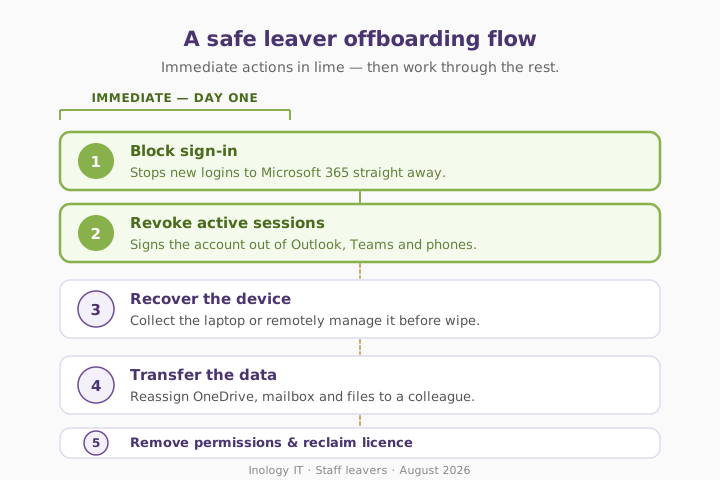
For home life, that could mean removing an old phone from your Apple, Google or Microsoft account, changing a shared Wi-Fi password, or removing a former partner from a shopping account. At work, it means a planned sequence: block sign-in, revoke sessions, secure devices and data, remove permissions, then archive or delete the account according to your retention rules.
Three quick wins you can act on this week
🏠 At home
Check signed-in devices on your main email, Apple, Google, Amazon and social accounts. Remove old phones, tablets and computers you no longer use, then change passwords that may have been shared with somebody else.
🏢 At work
On a leaver's final day: block Microsoft 365 sign-in, revoke active sessions, recover or remotely manage company devices, remove group and shared-mailbox access, and transfer the files or mailbox information the business needs. Do not assume deleting an account alone signs someone out everywhere.
🌍 For everyone
Keep a basic list of the important accounts, devices and shared passwords each person can access. When their relationship or role ends, work through the list, tick it off and record what was changed.
What each action actually does
Honest comparison — the actions we use most often when someone leaves, and what each one really achieves.
| Action | Stops new access | Ends active sessions | Preserves data | When to use |
|---|---|---|---|---|
| Change a password | ⚠️ Sometimes | ⚠️ Depends on service | ✅ Yes | Shared personal accounts |
| Block sign-in | ✅ Yes | ❌ Not always immediately | ✅ Yes | Immediate work leaver action |
| Revoke active sessions | ✅ On next login | ✅ Yes | ✅ Yes | Straight after blocking sign-in |
| Remove groups & file permissions | ✅ For those resources | ⚪ Not all systems | ✅ Yes | During offboarding |
| Delete the account | ✅ Yes | ✅ Eventually | ❌ May start deletion/retention | Only after data review |
| Do nothing | ❌ No | ❌ No | ⚠️ Uncontrolled | Never |
What this looks like locally
We help manufacturers, accountancy practices, law firms and professional-services teams across Denton (M34), Stockport (SK1), Ashton-under-Lyne (OL6) and Trafford (M33) put practical joiner-and-leaver processes in place. The most common issue is not malicious intent. It is a former staff member still appearing in a Teams group, a phone still receiving email, an old Microsoft 365 licence still being paid for, or access to a shared folder nobody knew they had.
If you'd like this built into how your Microsoft 365 tenant is looked after — or as part of a wider SecureState review — we can walk you through what a clean leaver process looks like.
Frequently asked
What should I do when an employee leaves?
Block their sign-in first, revoke active sessions, collect or manage company devices, remove access to groups and shared systems, transfer the files and mailbox data the business needs, then archive or delete the account under your retention policy.
Does deleting a Microsoft 365 user sign them out straight away?
Do not rely on deletion alone as your immediate control. Block sign-in and revoke sessions first, then deal with data retention, licences and account deletion in the correct order. Microsoft 365 offboarding reference.
What accounts should I remove from an old phone?
Start with email, Apple ID or Google account, Microsoft account, banking, shopping, cloud storage, social media and any password manager. Remove the device from your account's trusted-device list where that option exists.
How do I sign a former employee out of Microsoft 365?
An administrator can block the user's sign-in and select the option to sign them out of active sessions. This prevents future access and forces active sessions to reauthenticate.
Should I delete an ex-employee's email account immediately?
Not necessarily. First stop access, then check what emails, records, shared mailbox responsibilities, files and legal or retention requirements need to be preserved. Deleting too quickly can create a different problem.
How often should we review who has access?
Review access whenever someone joins, changes role or leaves, and conduct a wider review at least every few months. The NCSC specifically recommends making account-access reviews a regular habit.
“When somebody leaves a business, their laptop is the obvious thing to collect. Their digital keys are the important thing to collect.” — Brett Casterton, Inology IT
Let's tidy up the access list — same day.
I'm Brett at Inology IT. We help Greater Manchester businesses build practical joiner-and-leaver checklists — closing access safely, recovering files and devices, and avoiding forgotten accounts or unused licences. Drop your details below and I'll come back to you the same day.
Last reviewed by Brett Casterton, August 2026.